But YCQL (the Cassandra-compatible API) can be just as secure … you just apply encryption at the infrastructure and client layers.
In this YugabyteDB Tip, we’ll walk through how to secure YCQL end-to-end:
Using
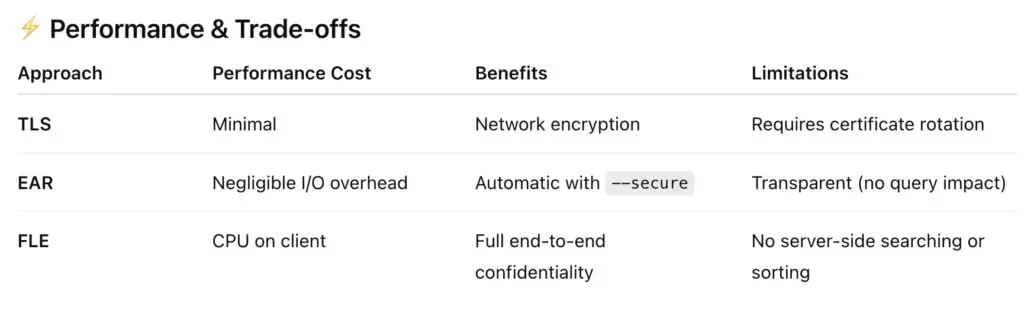
yugabyted --secureto enable encryption in transit and at rest.Using client-side field-level encryption (FLE) in Python to encrypt individual columns before they ever leave your app.
You’ll end up with a YCQL table where data is:
● Encrypted on the wire ✅
● Encrypted on disk ✅
● Encrypted in the client before it’s sent ✅
Step 1: Start a Secure YugabyteDB Cluster
The easiest way to enable encryption in both directions is to start YugabyteDB with the --secure flag.
./bin/yugabyted start --secure
This automatically:
● Generates local TLS certificates.
● Enables client-to-server and server-to-server TLS.
● Enables encryption at rest for data files and WALs.
You’ll see log output confirming:
Starting yugabyted...
✅ YugabyteDB Started
✅ Encryption in Transit and Password Authentication enabled
✅ UI ready
✅ Data placement constraint successfully verified
...
DB_PASSWORD is saved in the Credentials File.
Credentials File is stored at /root/var/data/yugabyted_credentials.txt
Once it starts, YCQL is available on port 9042 with secure connections.
💡 Note: If you’re deploying with YugabyteDB Anywhere (YBA), you can achieve the same by enabling TLS during universe creation. YBA automatically handles certificate generation and rotation for secure node and client communication.
Step 2: Create a Secure Keyspace and Table
Connect to YCQL using the secure shell:
[root@localhost ~]# grep "YCQL Credentials:" /root/var/data/yugabyted_credentials.txt -A 2
YCQL Credentials:
Username: cassandra
Password: LnQs3rvICdn2
[root@localhost ~]# SSL_CERTFILE=/root/var/generated_certs/root-ca/ca.crt ycqlsh -u cassandra -p LnQs3rvICdn2 --ssl
Connected to local cluster at 127.0.0.1:9042.
[ycqlsh 5.0.1 | Cassandra 3.9-SNAPSHOT | CQL spec 3.4.2 | Native protocol v4]
Use HELP for help.
cassandra@ycqlsh>
Then create a keyspace and table:
CREATE KEYSPACE secure_ks;
CREATE TABLE secure_ks.customers (
id int PRIMARY KEY,
ssn blob, -- client-encrypted
cc_number blob -- client-encrypted
);
Step 3: Install Python Dependencies
(Next we’ll demo one of many ways to perform Client-Side Encryption)
Set up a quick virtual environment:
python3 -m venv venv
source venv/bin/activate
pip install cassandra-driver cryptography
** Requires DataStax Python Driver 3.28.0 or higher **
Step 4: Run the Demo Script
Save the following as ycql_secure.py:
# ycql_secure.py
import os, ssl
from cassandra.cluster import Cluster
from cassandra.auth import PlainTextAuthProvider
from cassandra.policies import ColDesc
from cassandra.column_encryption.policies import (
AES256ColumnEncryptionPolicy,
AES256_KEY_SIZE_BYTES,
)
# --- keys (demo only) ---
ssn_key = os.urandom(AES256_KEY_SIZE_BYTES)
cc_key = os.urandom(AES256_KEY_SIZE_BYTES)
# --- column encryption policy ---
policy = AES256ColumnEncryptionPolicy()
policy.add_column(ColDesc("secure_ks", "customers", "ssn"), ssn_key, "text")
policy.add_column(ColDesc("secure_ks", "customers", "cc_number"), cc_key, "text")
# --- TLS + auth (matches your ycqlsh command) ---
ssl_ctx = ssl.create_default_context(cafile="/root/var/generated_certs/root-ca/ca.crt")
auth = PlainTextAuthProvider(username="cassandra", password="LnQs3rvICdn2")
cluster = Cluster(
["127.0.0.1"], # or your tserver IPs
port=9042,
ssl_context=ssl_ctx,
auth_provider=auth,
column_encryption_policy=policy,
)
session = cluster.connect()
# >>> Use PREPARED statements so the driver can encrypt bound params <<<
ins = session.prepare("""
INSERT INTO secure_ks.customers (id, ssn, cc_number) VALUES (?, ?, ?)
""")
session.execute(ins, (1, "111-22-3333", "4111111111111111"))
sel = session.prepare("SELECT ssn, cc_number FROM secure_ks.customers WHERE id = ?")
row = session.execute(sel, (1,)).one()
print("✅ Decrypted client-side:")
print("SSN:", row.ssn)
print("Card:", row.cc_number)
Run it:
python ycql_secure.py
Expected output:
✅ Decrypted client-side:
SSN: 111-22-3333
Card: 4111111111111111
Step 5: Verify What’s Stored in YCQL
Check the raw data on the server. You’ll see ciphertext, not plaintext:
[root@localhost ~]# SSL_CERTFILE=/root/var/generated_certs/root-ca/ca.crt ycqlsh -u cassandra -p LnQs3rvICdn2 --ssl -e "SELECT id, ssn, cc_number FROM secure_ks.customers;"
id | ssn | cc_number
----+--------------------------------------------------------------------+----------------------------------------------------------------------------------------------------
1 | 0xbdd83bf917533dd105522ea4659377b5f7e4cc3f08ddf8ed3a1e169a6f096f58 | 0xbdd83bf917533dd105522ea4659377b5c591dee17aee1a9541f3f935c2170c01ef73064aaf3aef651142878bc6e0acde
(1 rows)
Summary
With a single --secure flag and a few lines of Python, you’ve achieved:
● Encryption in transit ✅
● Encryption at rest ✅
● Field-level encryption in the client ✅
No plaintext ever leaves your application, making this approach ideal for finance, healthcare, or defense workloads that require strict compliance.
Have Fun!