Meet ybtop… “atop” for YugabyteDB

What if you could capture a moment in time across your entire YugabyteDB cluster… and then replay it later in a browser, no database connection required?

That’s exactly what ybtop does.  It’s a lightweight observability tool for YugabyteDB, inspired by tools like atop, but purpose-built for distributed systems.

And turns them into:

  • ● A live terminal view
  • ● A browser-based UI
  • ● A set of portable JSON snapshots

The current GitHub repo (for now):

⚠️ Start Here (Important)
For now, test ybtop in dev or staging environments only. The project is evolving quickly and will soon be moved into the official YugabyteDB GitHub organization.
🙏 A Quick Thank You
Huge thanks to Kannan Muthukkaruppan, President and Chief Executive Officer of YugabyteDB, for building and sharing ybtop. This is an incredibly useful tool for anyone working with distributed PostgreSQL at scale.

⚙️ How ybtop Works

ybtop has two modes:

  • ● watch → Collects data + writes snapshots + (now) launches a web UI
  • ● serve → Reads snapshots and serves them (no DB connection needed)

Typical workflow:

  • 1. Run watch against your cluster
  • 2. Generate workload
  • 3. Open the browser UI
  • 4. Drill into statements → ASH → tablets
  • 5. Share the snapshot folder with others
🧠 Under the Hood
You only need to connect to one YSQL node. ybtop discovers the rest of the universe using yb_servers() and collects cluster-wide metrics automatically.

⚙️ Install ybtop Recommended Method

The easiest way to install ybtop from the current GitHub repo is to use the GitHub ZIP URL. This avoids requiring git on the server.

				
					python3 -m pip install https://github.com/kmuthukk/ybtop/archive/refs/heads/main.zip


Verify the install:

				
					ybtop --version
				
			
⚠️ Why Not Use git?
You can install with python3 -m pip install git+https://github.com/kmuthukk/ybtop.git, but that requires git to be installed on the machine. The ZIP install method is simpler for many dev and staging environments.

Alternative install using git:

				
					sudo yum install -y git

python3 -m pip install git+https://github.com/kmuthukk/ybtop.git


📦 Version Used in This Tip

This demo uses:

				
					ybtop 0.1.5


🧪 Demo: Capture a Workload and Replay It

In this demo, you’ll:

  • ● Run ybtop watch
  • ● Generate workload
  • ● Explore the browser UI
  • ● Replay the captured data offline

Step 1: Start ybtop watch

⚠️ Managed / Secure Cluster Note
For now, ybtop is best tested from a host that can directly reach all YSQL node addresses returned by yb_servers(). Some managed or secure environments may return private/internal node IPs that are not reachable from where ybtop is installed. Support for this type of topology may be added in a future enhancement.

You can connect to YugabyteDB in two common ways.

Option 1: Standard Connection (Host / Port)
				
					mkdir -p ./ybtop_snapshots

ybtop watch \
  --host <YSQL_NODE_IP> \
  --port 5433 \
  --user yugabyte \
  --password <PASSWORD> \
  --dbname yugabyte \
  --output-dir ./ybtop_snapshots
				
			
Option 2: Secure Cluster (DSN + SSL)

If you already connect using ysqlsh with SSL, you can reuse the same connection string.

				
					ybtop watch \
  --dsn "postgresql://admin@<host>:5433/yugabyte?ssl=true&sslmode=verify-full&sslrootcert=/path/to/root.crt" \
  --password '<PASSWORD>' \
  --output-dir ./ybtop_snapshots


Or, more securely:

				
					export YBTOP_DSN="postgresql://admin@<host>:5433/yugabyte?ssl=true&sslmode=verify-full&sslrootcert=/path/to/root.crt"
export PGPASSWORD='<PASSWORD>'

ybtop watch --output-dir ./ybtop_snapshots
				
			
🖥️ Terminal + Browser
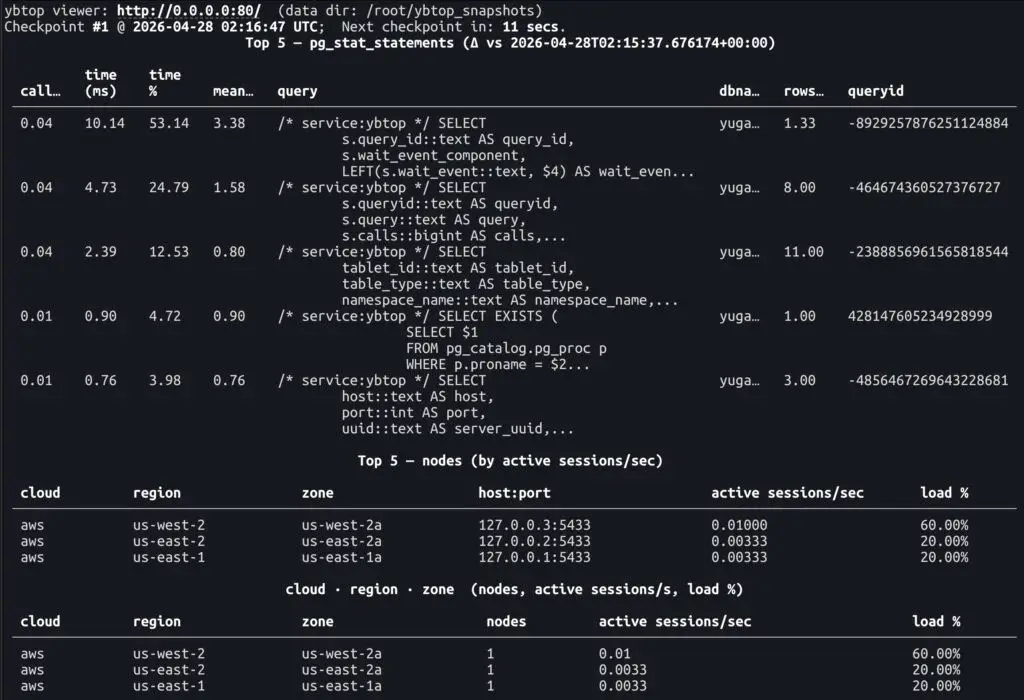
When you run ybtop watch, you get two views at the same time:
  • ● A live terminal dashboard showing top queries, nodes, and activity in real time
  • ● A browser-based UI for deeper analysis across snapshots
The terminal is great for quick visibility. The browser UI is where you explore and investigate.

Example Terminal Dashboard:

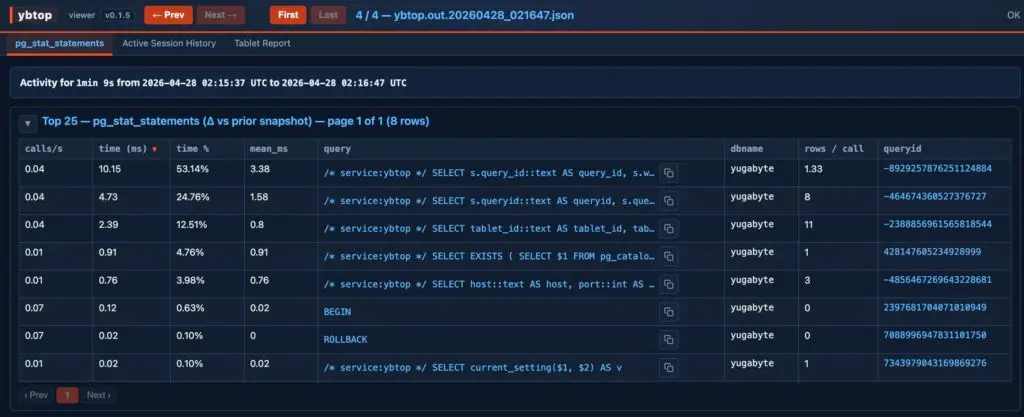
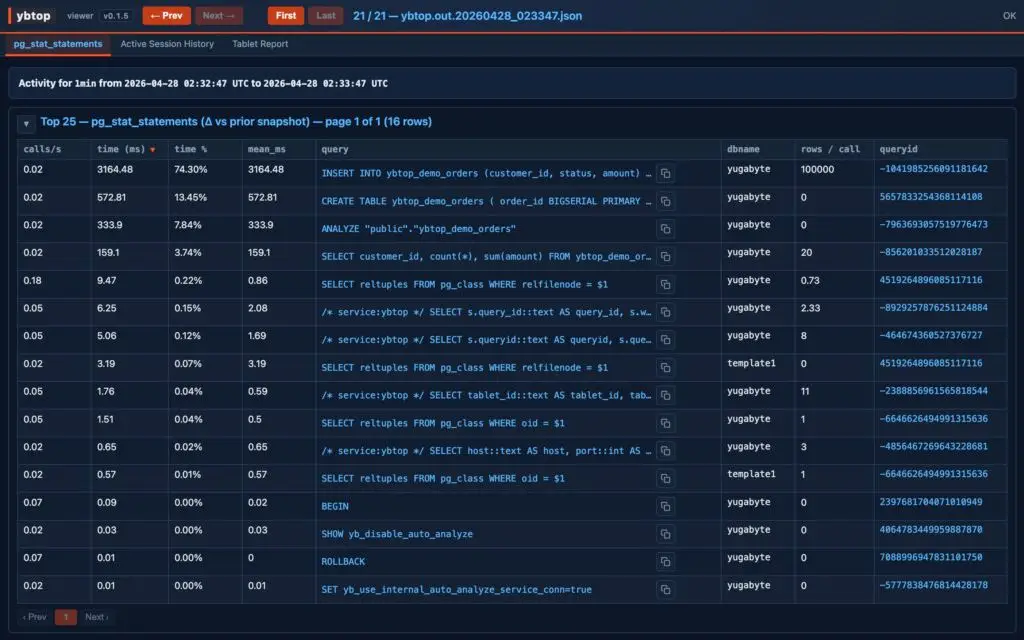
Example browser-based UI:

💡 Browser UI Options
By default, ybtop watch starts a browser UI:
http://127.0.0.1:8765/
Disable the web server if you only want terminal + snapshots:
ybtop watch --no-serve …
Customize viewer IP and port:
--serve-bind <server IP/name> --serve-port <port>
Step 2: Generate Workload

				
					CREATE TABLE ybtop_demo_orders (
    order_id     BIGSERIAL PRIMARY KEY,
    customer_id  INT NOT NULL,
    status       TEXT NOT NULL,
    amount       NUMERIC(10,2),
    created_at   TIMESTAMPTZ DEFAULT now()
);


					INSERT INTO ybtop_demo_orders (customer_id, status, amount)
SELECT
    (random() * 10000)::int,
    CASE
        WHEN random() < 0.70 THEN 'COMPLETE'
        WHEN random() < 0.90 THEN 'PENDING'
        ELSE 'FAILED'
    END,
    (random() * 500)::numeric
FROM generate_series(1, 100000);


					SELECT customer_id, count(*), sum(amount)
FROM ybtop_demo_orders
WHERE status = 'COMPLETE'
GROUP BY customer_id
ORDER BY sum(amount) DESC
LIMIT 20;


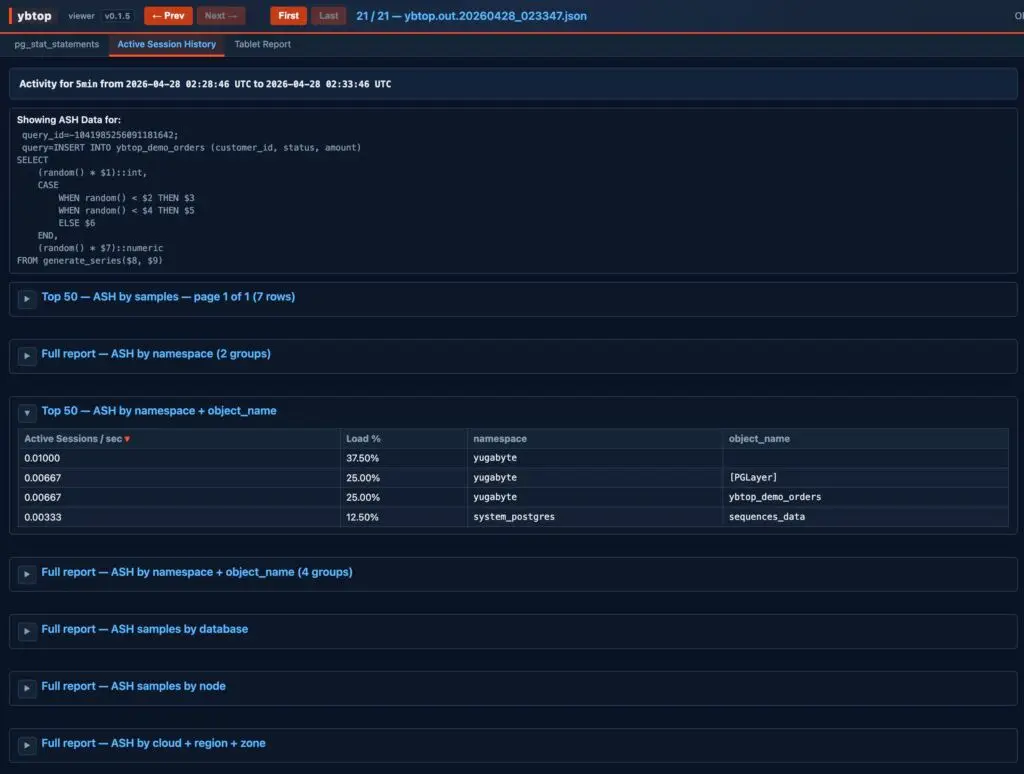
Step 3: Explore the UI

Tabs:

  • ● Statements (delta mode)
  • ● ASH (active sessions/sec)
  • ● Tablet Report

Example (pg_state_statements):

🔎 Try This
Click a query → instantly jump to ASH filtered for that query.

Step 4: Snapshots

				
					ls -lh ./ybtop_snapshots
				
			
💡 Key Insight
Snapshots are portable… capture once, analyze anywhere.

Step 5: Replay Anywhere

				
					tar -czf ybtop_snapshots.tgz ./ybtop_snapshots


					ybtop serve --data-dir ./ybtop_snapshots --port 8080


⚖️ What Makes ybtop Different?

Feature Traditional Tools ybtop
Snapshots No Yes
Browser UI External Built-in
Offline Analysis Rare Yes
Query → ASH Manual One click

🎯 Final Takeaway

ybtop changes how you troubleshoot YugabyteDB.

Instead of chasing live metrics, you can:

  • ● Capture what happened
  • ● Replay it anytime
  • ● Share it with others
💡 Where This Fits
ybtop is especially useful for the open source YugabyteDB community and self-managed deployments.

If you’re running YugabyteDB Aeon or YugabyteDB Anywhere, those platforms already provide a rich UI with live and historical metrics, along with a built-in performance advisor.

ybtop complements those capabilities by making it easy to capture and replay workload activity in a portable, shareable format.

This isn’t just another monitoring tool… it’s a time machine for your cluster. 🚀

Have Fun!

While getting ready to board my flight home after a week in Vegas for the Google Cloud Next conference, I spotted a Chick-fil-A bag sitting on the cockpit dashboard. Naturally, my first thought was… wait. did the pilot swing this thing through a drive-thru on the way in? 😄